RDK S100: USB WiFi adapter setup
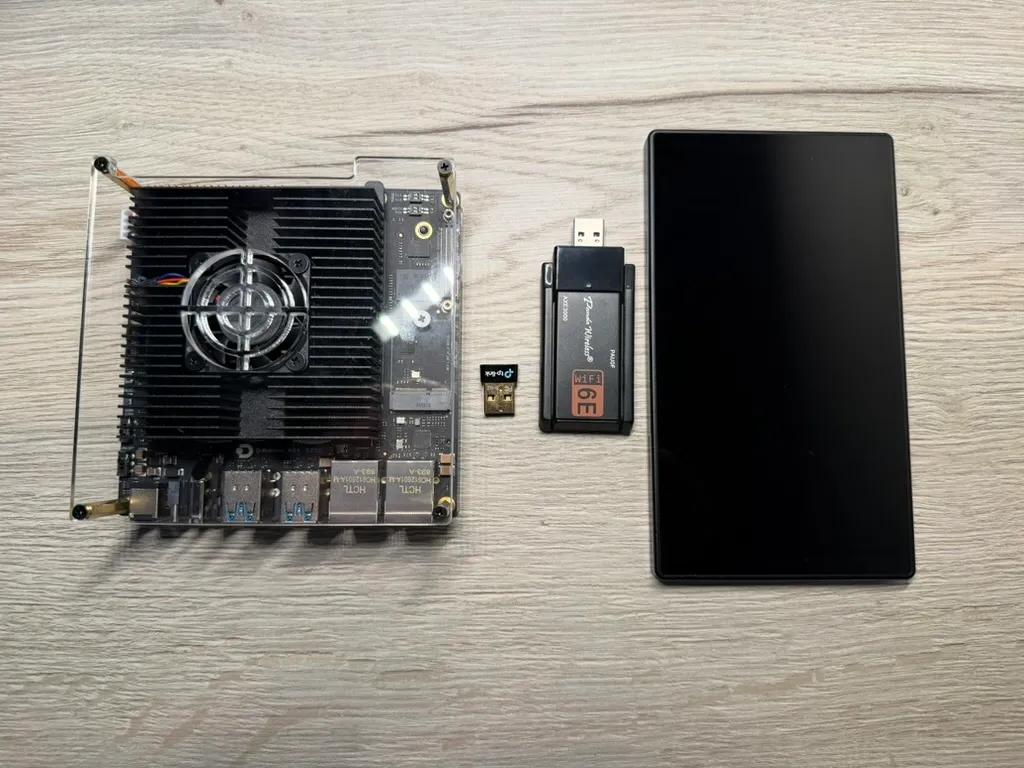
This guide covers how to get WiFi working on a D-Robotics S100P using a Panda PAU0F USB adapter (mt7921au wireless communications chipset). The S100P’s custom Linux kernel doesn’t include a driver for the adapter, so you must set up the driver manually as an out-of-tree module. The tasks include obtaining, compiling, signing, loading, and rebuilding the USB driver using an automated script.
Background
Section titled “Background”The S100P doesn’t ship with a built-in WiFi module: it only includes an ethernet connection. For WiFi connectivity, the S100P provides plug-and-play support for an M.2 2230 Key E module, but if you don’t have one during set up, a USB WiFi module is another option. However, the RDK doesn’t include a driver for USB WiFi modules, so you must perform additional steps to use a USB adapter.
We don’t recommend using a USB module permanently on your S100 because it takes up significant external space and uses an additional USB port. Only use one as a temporary WiFi solution until you obtain an M.2 2230 Key E module. The S100 supports directly connecting an E module to the board for WiFi without taking up extra space and USB ports, which is an important benefit when building robots.
The following approaches do not work on the S100P:
- Prebuilt drivers from apt: The D-Robotics repository doesn’t have mt76/mt7921 WiFi packages.
apt search mt76returns nothing. - Ubuntu kernel module packages: Available modules target the stock Ubuntu 5.15 kernel, not the custom D-Robotics 6.1.112-rt43 kernel.
- Compiling from the openwrt/mt76 GitHub repo: Both recent and older commits fail with API mismatches (
nla_policy,netif_napi_addsignature changes, missingpage_pool/helpers.h). - Building from kernel headers: The headers at
/lib/modules/$(uname -r)/buildinclude Makefiles and Kconfig but no.csource files, somake M=... modulesdoesn’t have anything to compile.
Prerequisites
Section titled “Prerequisites”Required:
- D-Robotics RDK S100P: Running kernel 6.1.112-rt43.
- USB WiFi adapter: Panda PAU0F (mt7921au chipset), or another mt7921au chipset-based adapter.
Optional:
- USB extension cable: To plug in the PAU0F without crowding neighboring USB ports.
Connect the adapter
Section titled “Connect the adapter”Before powering on the S100, plug the PAU0F into the S100.
The S100 has 4 USB ports positioned closely together. The PAU0F not only takes up a port that is in high demand, but also takes up extra space around the port. You can plug another device into the USB port below the PAU0F, but it’s a tight fit, which may damage the port. For this reason, use a USB extension cable to safely plug in the PAU0F.
Set up the build environment
Section titled “Set up the build environment”Before building the driver, you must set up the build environment to build out-of-tree modules (drivers not included with the device). This allows you to compile and rebuild drivers on the S100.
-
Install the build dependencies:
Terminal window sudo apt install -y git build-essential -
Prepare the kernel build environment for compiling out-of-tree modules:
Terminal window sudo make -C /lib/modules/$(uname -r)/build prepareFor more information about the D-Robotics kernel build environment, see Kernel Headers documentation.
Build the driver
Section titled “Build the driver”Panda provides a MediaTek vendor driver for the PAU0F, and the driver compiles cleanly against the S100P kernel as an out-of-tree module. To build the driver, perform these steps in a terminal:
-
Download the PAU0F driver source from the Panda website, and then extract it. This example extracts to the home directory:
Terminal window cd ~wget https://www.pandawireless.com/download/panda_pau0f_m1.tar.gztar xzf panda_pau0f_m1.tar.gz -
Copy the PAU0F firmware from the driver source to the
/lib/firmware/directory. The build process will attempt this step but lacks the permissions to complete it, so you must copy the firmware manually before compiling.Terminal window cd ~/Panda-Wirelesssudo cp wlan_cfg/mt7961/* /lib/firmware/ -Rsudo cp fw/* /lib/firmware/ -R -
Compile the driver:
Terminal window cd ~/Panda-Wireless/wlan_driver_1e4c921/gen4mmake -f Makefile.x86 MTK_COMBO_CHIP=MT7961 hif=usb 2>&1 | tail -10The build output should indicate that the
wlan_mt7961_usb.kowas created successfully. The output may also include a permission error about attempting to copy firmware. This is expected since you already copied the firmware in the previous step.The system GCC (11.4.0) doesn’t match the kernel build compiler (11.3.1) exactly. You may see a warning about this, but the driver should compile and work without issues.
Sign and install the driver
Section titled “Sign and install the driver”The S100P kernel requires drivers to be cryptographically signed before they can load.
The simplest way to handle signing is to use the kernel’s module_install command to sign and install the driver:
sudo make -C /lib/modules/$(uname -r)/build KERNELRELEASE=$(uname -r) M=$(pwd) modules_installLoad the driver
Section titled “Load the driver”-
Load the driver for the first time using the following command. This only loads the driver until the S100 reboots; see Autoload the driver .
Terminal window sudo modprobe wlan_mt7961_usb -
Verify it loaded:
Terminal window lsmod | grep wlanip link showThe output should display
wlan0.
Connect to WiFi
Section titled “Connect to WiFi”To connect to a WiFi network, use the following command, or use the Ubuntu WiFi settings.
sudo nmcli dev wifi listsudo nmcli dev wifi connect <SSID> password <password>Autoload the driver
Section titled “Autoload the driver”-
Configure auto-loading, so you don’t have to manually load the driver after every reboot:
Terminal window sudo bash -c 'echo wlan_mt7961_usb > /lib/modules-load.d/wlan_mt7961_usb.conf'This creates a configuration file in
/lib/modules-load.d/containing just the module namewlan_mt7961_usb. Thesystemd-modules-loadservice reads all.conffiles in that directory and loads the listed modules automatically each time the system starts. -
Reboot and confirm WiFi connects automatically.
Pin the kernel
Section titled “Pin the kernel”When you perform a system update on the S100, if a kernel update is included, the update will break out-of-tree modules on the system by overwriting the configuration files in the module directory. This prevents the PAU0F driver from loading, so the device won’t be able to connect to WiFi.
To block accidental kernel updates when updating the system, pin the kernel with this command:
sudo apt-mark hold linux-headers-6.1.112-rt43 linux-image-rdk-s100This allows you to safely run apt upgrade for all other packages without breaking WiFi. If you intentionally want to update the kernel later, unpin the kernel with this command:
sudo apt-mark unhold linux-headers-6.1.112-rt43 linux-image-rdk-s100After updating the kernel, rebuild all out-of-tree modules before rebooting, then pin the kernel again. You can rebuild the modules manually, but we recommend using the driver rebuild script instead.
Driver rebuild script
Section titled “Driver rebuild script”Instead of manually rebuilding the PAU0F driver each time you update the kernel, you can automate the process using scripts.
Get the scripts
Section titled “Get the scripts”The following scripts automate the PAU0F driver rebuild process. A wrapper script handles the PAU0F-specific build options and calls a general-purpose module rebuild script to do the actual work.
Save both scripts in a ~/scripts directory on your S100.
-
Save the wrapper script as
s100p-wifi-rebuild.sh.s100p-wifi-rebuild.sh #!/bin/bash# s100p-wifi-rebuild.sh# Rebuilds and installs the Panda PAU0F (mt7921au) WiFi driver for the# D-Robotics RDK S100P. Wraps s100p-module-rebuild.sh with Panda-specific# parameters and handles firmware installation.## Usage:# sudo ./s100p-wifi-rebuild.sh## Prerequisites:# - Panda driver extracted at ~/Panda-Wireless (from panda_pau0f_m1.tar.gz)# - s100p-module-rebuild.sh in the same directory as this script# - Internet access (for initial build-essential install)## Updating the driver:# If Panda releases a new driver version, download the latest tarball from:# https://pandawireless.com/pandaWiFi6E.htm# Then replace the existing files:# cd ~# rm -rf Panda-Wireless# wget https://www.pandawireless.com/download/<new-tarball>.tar.gz# tar xzf <new-tarball>.tar.gz# sudo ./s100p-wifi-rebuild.shset -euo pipefailRED='\033[0;31m'GREEN='\033[0;32m'YELLOW='\033[1;33m'NC='\033[0m'log_info() { echo -e "${GREEN}[INFO]${NC} $1"; }log_warn() { echo -e "${YELLOW}[WARN]${NC} $1"; }log_error() { echo -e "${RED}[ERROR]${NC} $1"; }SCRIPT_DIR="$(cd "$(dirname "${BASH_SOURCE[0]}")" && pwd)"PANDA_DIR="${HOME}/Panda-Wireless"MODULE_REBUILD="${SCRIPT_DIR}/s100p-module-rebuild.sh"if [[ $EUID -ne 0 ]]; thenlog_error "This script must be run with sudo."exit 1fi# --- Check prerequisites ---if [[ ! -d "$PANDA_DIR" ]]; thenlog_error "Panda driver not found at ${PANDA_DIR}"log_info "Download and extract it first:"echo " cd ~"echo " wget https://www.pandawireless.com/download/panda_pau0f_m1.tar.gz"echo " tar xzf panda_pau0f_m1.tar.gz"exit 1fi# --- Find driver directory dynamically ---# The driver source lives in a subdirectory like wlan_driver_<hash>/gen4m.# This avoids hardcoding a path that changes when Panda updates the tarball.DRIVER_DIR=$(find "$PANDA_DIR" -maxdepth 2 -type f -name "Makefile.x86" -printf '%h\n' | head -1)if [[ -z "$DRIVER_DIR" ]]; thenlog_error "Could not find Makefile.x86 in ${PANDA_DIR}."log_error "The driver tarball structure may have changed."exit 1filog_info "Found driver source at: ${DRIVER_DIR}"if [[ ! -f "$MODULE_REBUILD" ]]; thenlog_error "s100p-module-rebuild.sh not found at ${MODULE_REBUILD}"log_info "Place it in the same directory as this script."exit 1fiif ! command -v make &> /dev/null; thenlog_info "Installing build dependencies..."apt install -y git build-essentialfi# --- Install firmware ---log_info "Installing firmware to /lib/firmware/..."FW_DIR=$(find "$PANDA_DIR" -maxdepth 1 -type d -name "fw" | head -1)CFG_DIR=$(find "$PANDA_DIR" -maxdepth 2 -type d -name "mt7961" -path "*/wlan_cfg/*" | head -1)if [[ -n "$FW_DIR" ]]; thencp "${FW_DIR}/"* /lib/firmware/ -Rfiif [[ -n "$CFG_DIR" ]]; thencp "${CFG_DIR}/"* /lib/firmware/ -R 2>/dev/null || truefilog_info "Firmware installed."# --- Rebuild driver using general script ---exec bash "$MODULE_REBUILD" \--build-dir "$DRIVER_DIR" \--build-cmd "make -f Makefile.x86 MTK_COMBO_CHIP=MT7961 hif=usb" \--clean-cmd "make -f Makefile.x86 MTK_COMBO_CHIP=MT7961 hif=usb clean" \--module-name wlan_mt7961_usb -
Save the module rebuild script as
s100p-module-rebuild.sh.s100p-module-rebuild.sh #!/bin/bash# s100p-module-rebuild.sh# General-purpose kernel module rebuild script for D-Robotics RDK S100P.# Handles: prepare, build, sign, install, depmod, and auto-load configuration.## Usage:# sudo ./s100p-module-rebuild.sh --build-dir <path> --build-cmd <command> --module-name <name>## Example:# sudo ./s100p-module-rebuild.sh \# --build-dir ~/my-driver/src \# --build-cmd "make -f Makefile.x86 MTK_COMBO_CHIP=MT7961 hif=usb" \# --module-name wlan_mt7961_usbset -euo pipefail# --- Defaults ---BUILD_DIR=""BUILD_CMD=""MODULE_NAME=""CLEAN_CMD=""AUTO_LOAD=trueSKIP_PREPARE=false# --- Colors ---RED='\033[0;31m'GREEN='\033[0;32m'YELLOW='\033[1;33m'NC='\033[0m'usage() {cat <<EOFUsage: sudo $0 [OPTIONS]Required:--build-dir <path> Directory containing the driver source--build-cmd <command> Command to compile the driver (run from build-dir)--module-name <name> Name of the .ko module (without .ko extension)Optional:--clean-cmd <command> Command to clean before building (run from build-dir)--no-auto-load Skip adding module to auto-load at boot--skip-prepare Skip kernel build environment preparation-h, --help Show this help messageExample:sudo $0 \\--build-dir ~/Panda-Wireless/wlan_driver_1e4c921/gen4m \\--build-cmd "make -f Makefile.x86 MTK_COMBO_CHIP=MT7961 hif=usb" \\--module-name wlan_mt7961_usbEOFexit 1}log_info() { echo -e "${GREEN}[INFO]${NC} $1"; }log_warn() { echo -e "${YELLOW}[WARN]${NC} $1"; }log_error() { echo -e "${RED}[ERROR]${NC} $1"; }# --- Parse arguments ---while [[ $# -gt 0 ]]; docase "$1" in--build-dir) BUILD_DIR="$2"; shift 2 ;;--build-cmd) BUILD_CMD="$2"; shift 2 ;;--module-name) MODULE_NAME="$2"; shift 2 ;;--clean-cmd) CLEAN_CMD="$2"; shift 2 ;;--no-auto-load) AUTO_LOAD=false; shift ;;--skip-prepare) SKIP_PREPARE=true; shift ;;-h|--help) usage ;;*) log_error "Unknown option: $1"; usage ;;esacdone# --- Validate required arguments ---if [[ -z "$BUILD_DIR" || -z "$BUILD_CMD" || -z "$MODULE_NAME" ]]; thenlog_error "Missing required arguments."usagefiif [[ $EUID -ne 0 ]]; thenlog_error "This script must be run with sudo."exit 1fiif [[ ! -d "$BUILD_DIR" ]]; thenlog_error "Build directory does not exist: $BUILD_DIR"exit 1fiKERN_VER=$(uname -r)KERN_BUILD="/lib/modules/${KERN_VER}/build"MODULE_FILE="${MODULE_NAME}.ko"if [[ ! -d "$KERN_BUILD" ]]; thenlog_error "Kernel headers not found at ${KERN_BUILD}"log_error "Install with: sudo apt install linux-headers-6.1.112-rt43"exit 1filog_info "Kernel version: ${KERN_VER}"log_info "Build directory: ${BUILD_DIR}"log_info "Module name: ${MODULE_NAME}"# --- Step 1: Prepare kernel build environment ---if [[ "$SKIP_PREPARE" = false ]]; thenlog_info "Preparing kernel build environment..."make -C "$KERN_BUILD" prepare > /dev/null 2>&1log_info "Kernel build environment ready."elselog_info "Skipping kernel build environment preparation."fi# --- Step 2: Clean (optional) ---if [[ -n "$CLEAN_CMD" ]]; thenlog_info "Cleaning previous build..."cd "$BUILD_DIR"eval "$CLEAN_CMD" > /dev/null 2>&1 || truefi# --- Step 3: Compile ---log_info "Compiling driver..."cd "$BUILD_DIR"# Allow build to "fail" due to firmware copy permission errorseval "$BUILD_CMD" 2>&1 | tail -5 || trueif [[ ! -f "$BUILD_DIR/$MODULE_FILE" ]]; thenlog_error "Build failed: ${MODULE_FILE} not found in ${BUILD_DIR}"exit 1filog_info "Compiled successfully: ${MODULE_FILE}"# --- Step 4: Sign and install via modules_install ---log_info "Signing and installing module..."make -C "$KERN_BUILD" KERNELRELEASE="$KERN_VER" M="$BUILD_DIR" modules_installlog_info "Module signed and installed."# --- Step 5: Configure auto-load ---if [[ "$AUTO_LOAD" = true ]]; thenAUTOLOAD_CONF="/lib/modules-load.d/${MODULE_NAME}.conf"echo "$MODULE_NAME" > "$AUTOLOAD_CONF"log_info "Auto-load configured: ${AUTOLOAD_CONF}"fi# --- Step 6: Load the module ---# Unload if already loadedif lsmod | grep -q "^${MODULE_NAME}"; thenlog_info "Unloading existing module..."modprobe -r "$MODULE_NAME" 2>/dev/null || rmmod "$MODULE_NAME" 2>/dev/null || truefilog_info "Loading module..."modprobe "$MODULE_NAME"if lsmod | grep -q "^${MODULE_NAME}"; thenlog_info "Module ${MODULE_NAME} loaded successfully."elselog_error "Module ${MODULE_NAME} failed to load. Check dmesg for details."exit 1fiecho ""log_info "Done! Module ${MODULE_NAME} is installed and will auto-load on boot."You can reuse the module rebuild script with other drivers. For more information, see Set up third-party drivers.
Run the scripts
Section titled “Run the scripts”Run these commands in your scripts directory:
-
Make both scripts executable:
Terminal window chmod +x s100p-module-rebuild.sh s100p-wifi-rebuild.sh -
Run the WiFi wrapper script:
Terminal window sudo ./s100p-wifi-rebuild.sh